Customizing navigation & lists
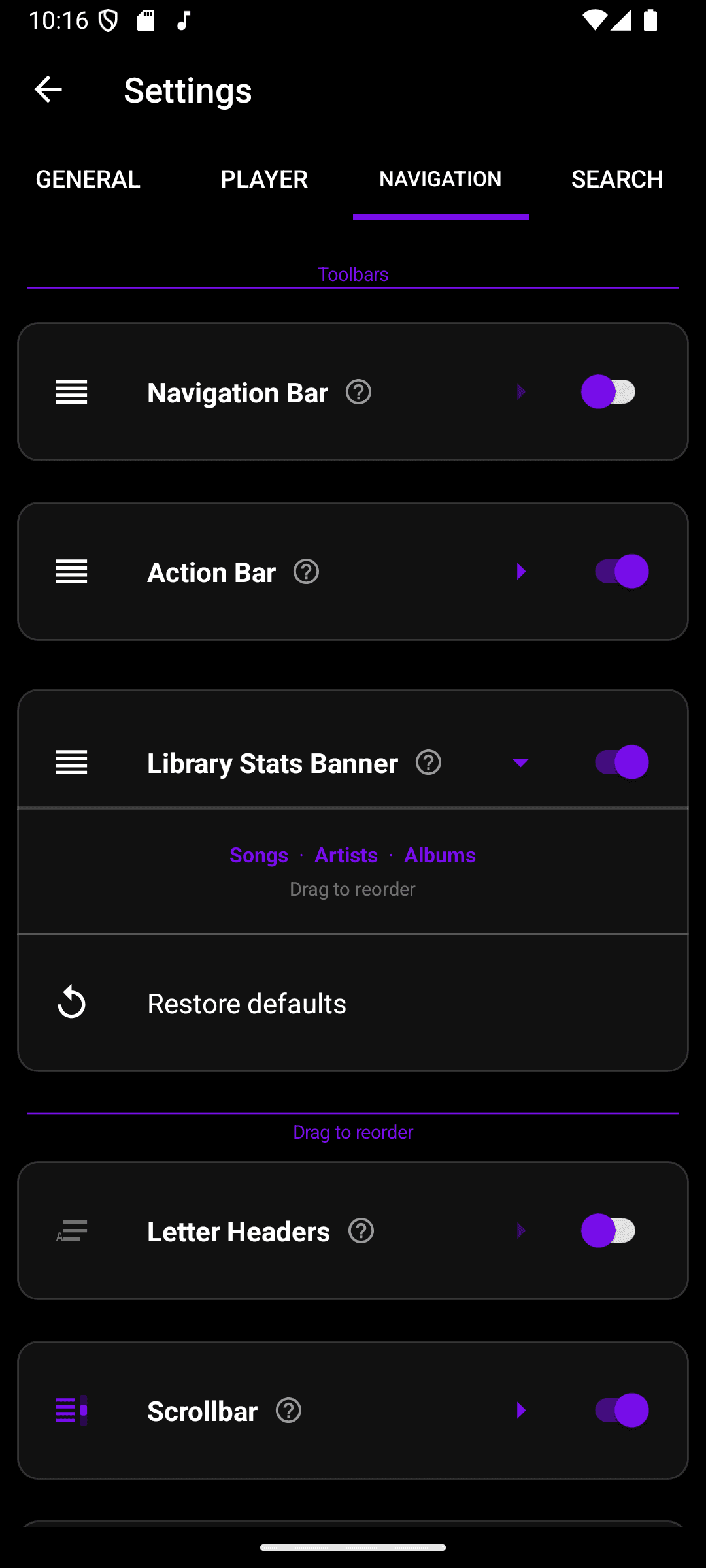
The Navigation tab in Settings controls almost everything about how you get around your library: which toolbars show up and in what order, plus letter headers, the fast-scroll scrollbar, and the jump-to-playing button. Every section works the same way — tap a row to expand it and see its options, use its switch to turn it off entirely, and use Restore defaults inside the section to reset just that one.
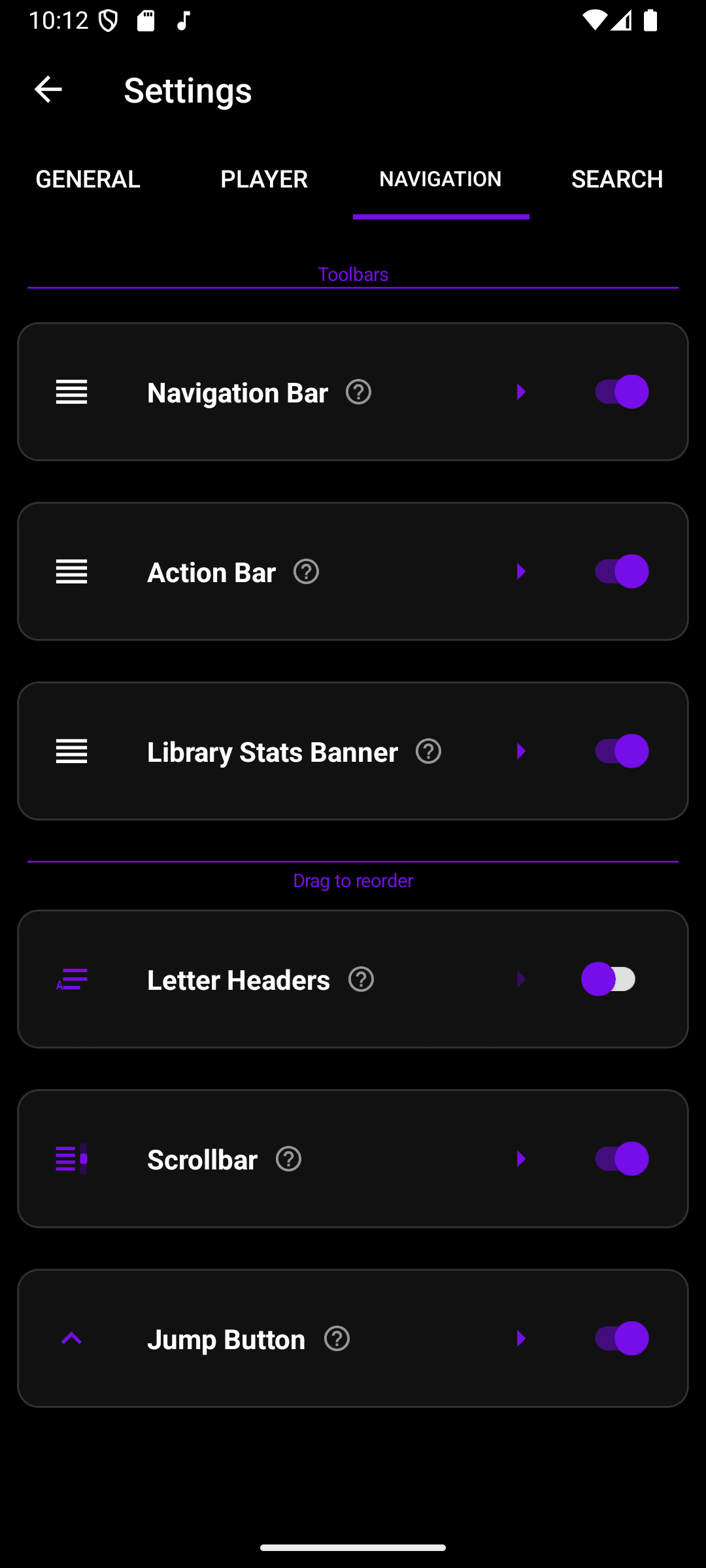
- Navigation Bar, Action Bar, and Library Stats Banner sit in a Toolbars group at the top — drag them by the handle on the left to change which one appears above the others on the library screen.
- Letter Headers, Scrollbar, and Jump Button sit below and always stay in that fixed order.
- Tap anywhere on a row (other than its switch) to expand it and reveal a live preview plus its settings.
Only one section can be expanded at a time, and a section can't be expanded while its switch is off — turn it on first.
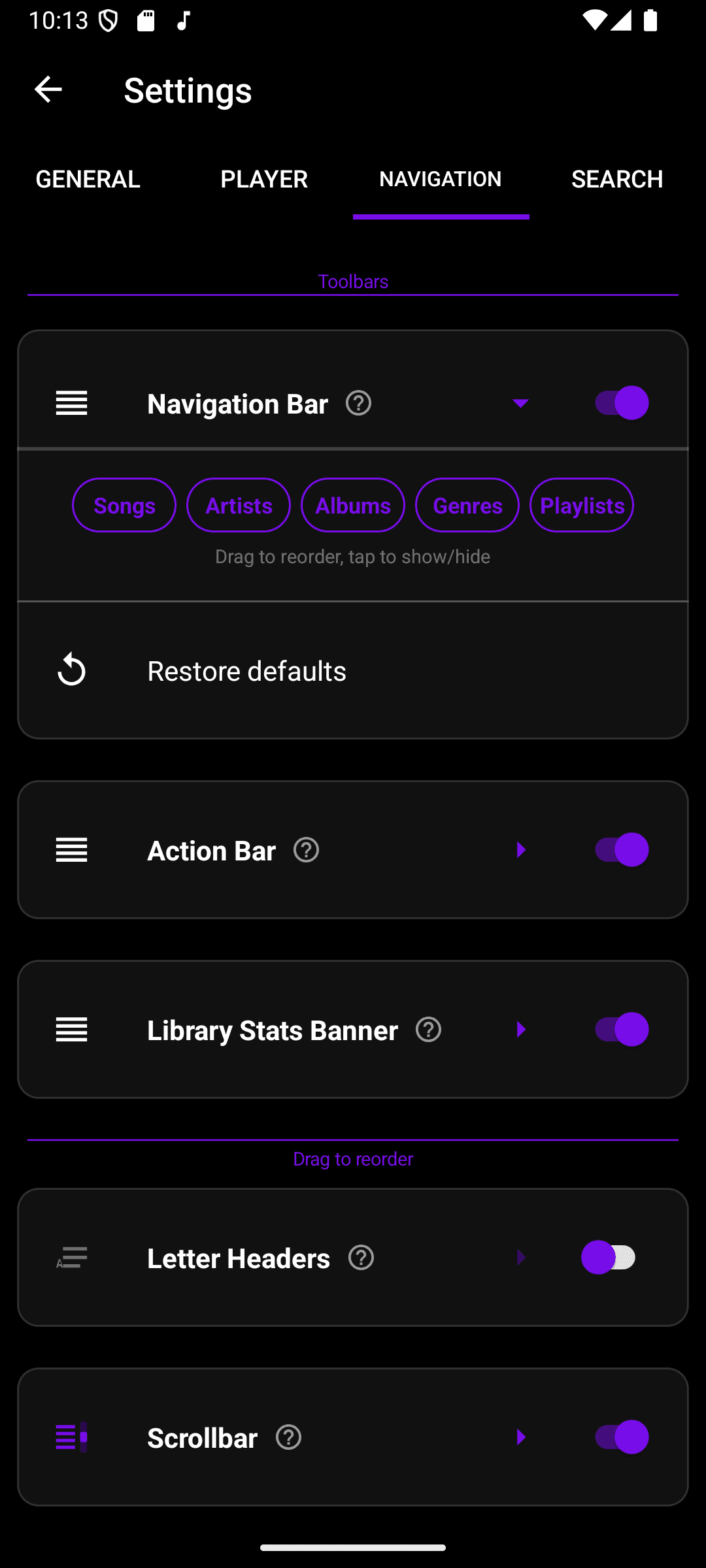
Navigation Bar is the row of tabs (Songs, Artists, Albums, Genres, Playlists) above your library. Expand it to drag tabs into a new order, or tap a tab to hide it — hidden tabs are still reachable by swiping between pages.
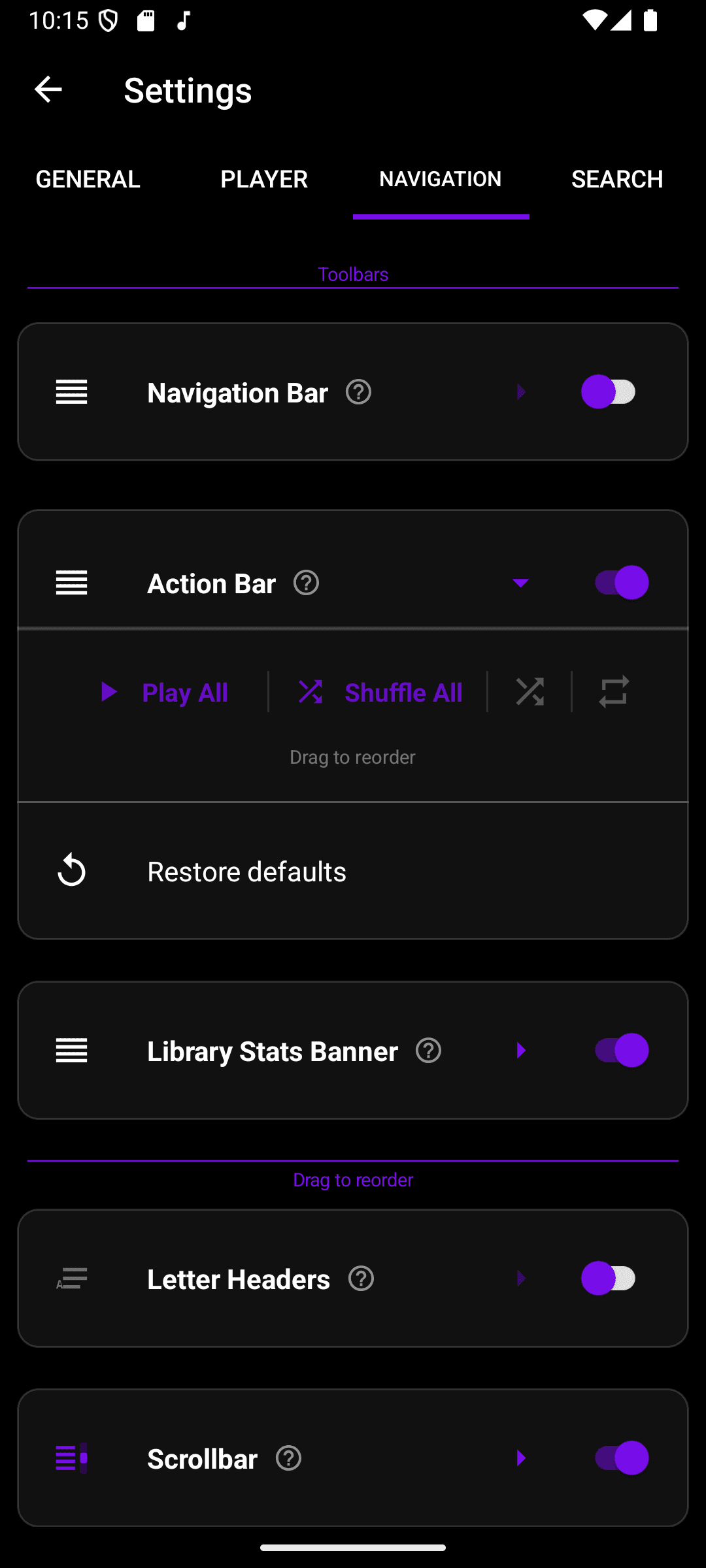
Action Bar is the row with Play All, Shuffle All, and the shuffle/repeat toggles above your lists. Expand it to drag those four items into a new order.
Library Stats Banner is the strip showing counts like songs, artists, and albums above your library. Expand it to drag which stats appear and in what order.
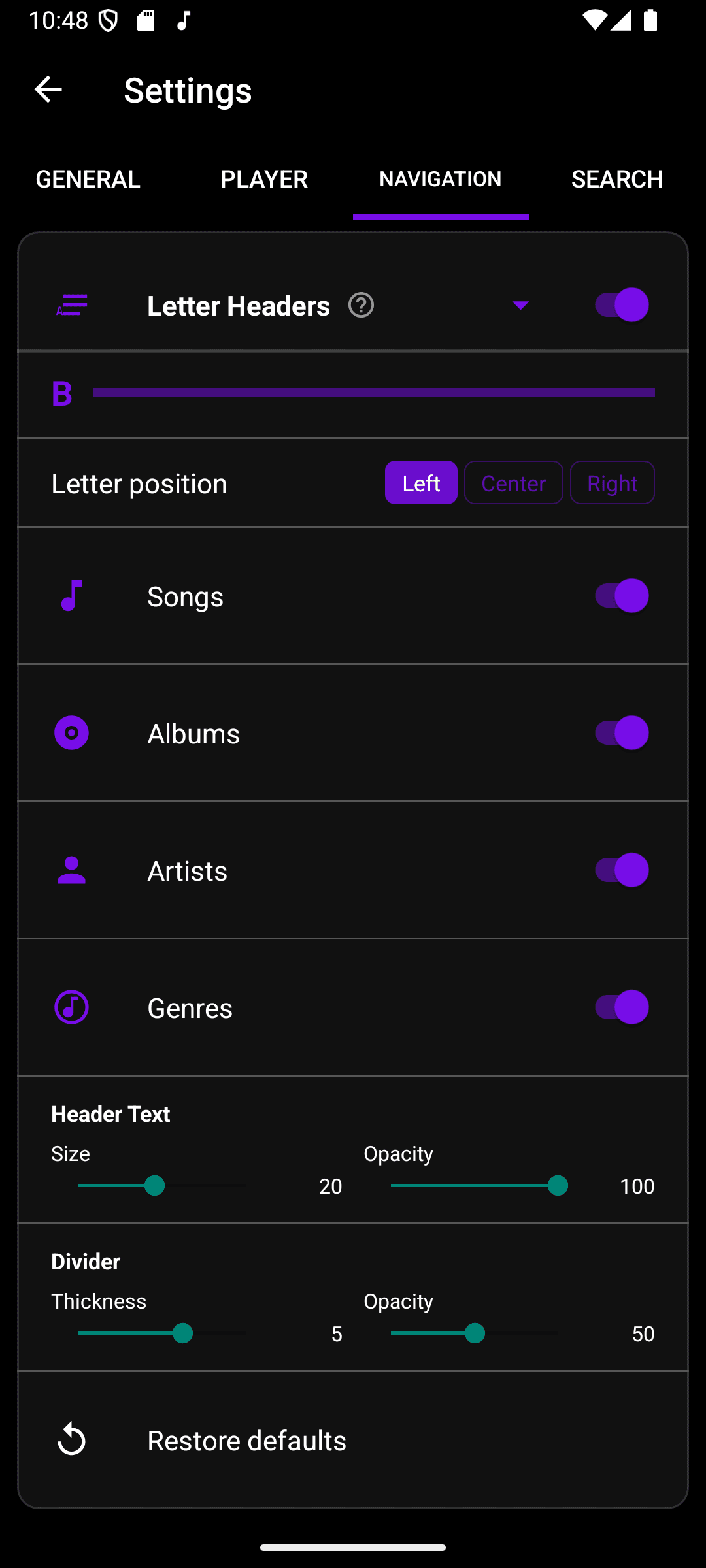
Letter Headers split long lists into alphabetical sections (A, B, C…) and are off by default. Once turned on, expand the section to set the header text alignment (Left/Center/Right), choose which tabs use letter headers, and fine-tune header text size/opacity and divider thickness/opacity.
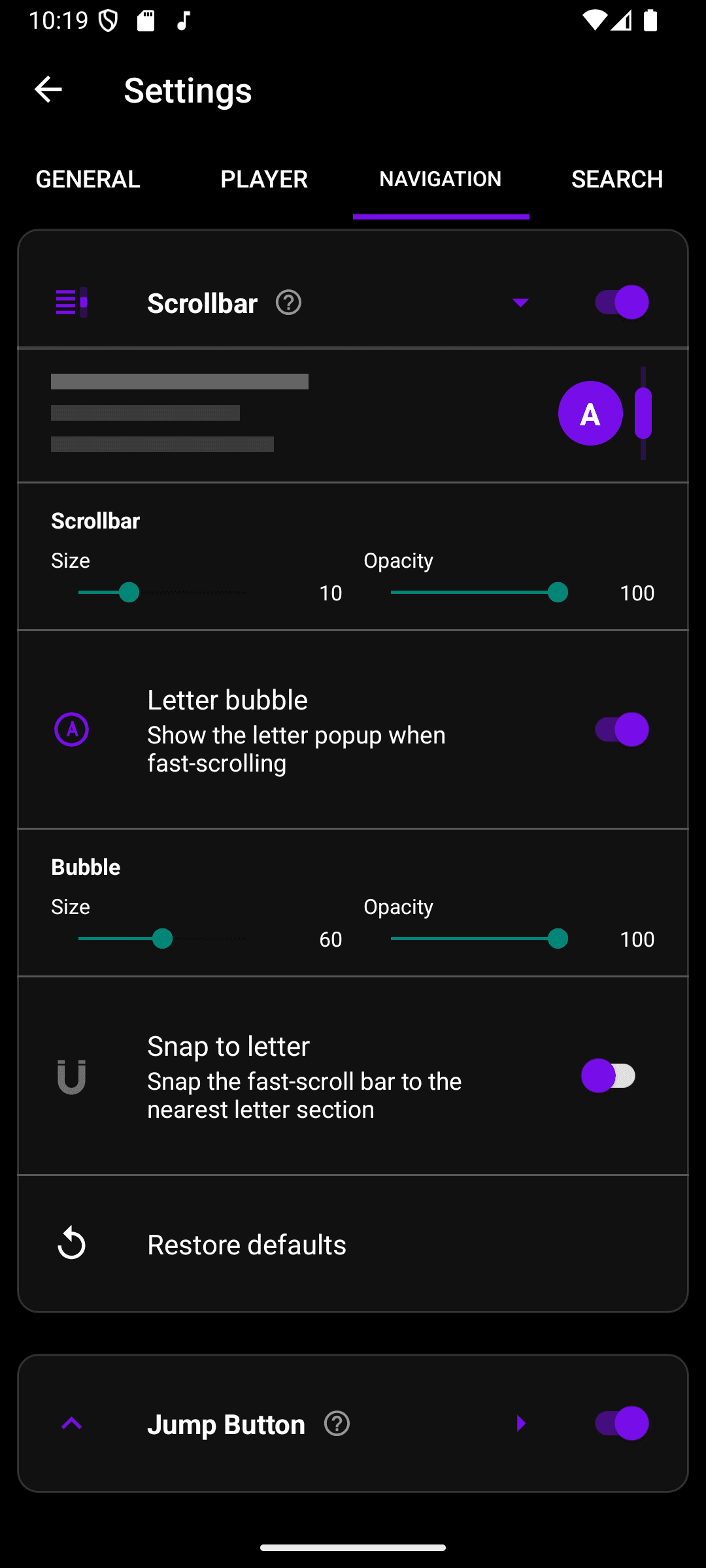
Scrollbar is the draggable bar on the right edge of long lists. Expand it to adjust its size and opacity, toggle the letter bubble that pops up while fast-scrolling (and its own size/opacity), and turn on Snap to letter to have the bar jump to the nearest letter section instead of scrolling freely.
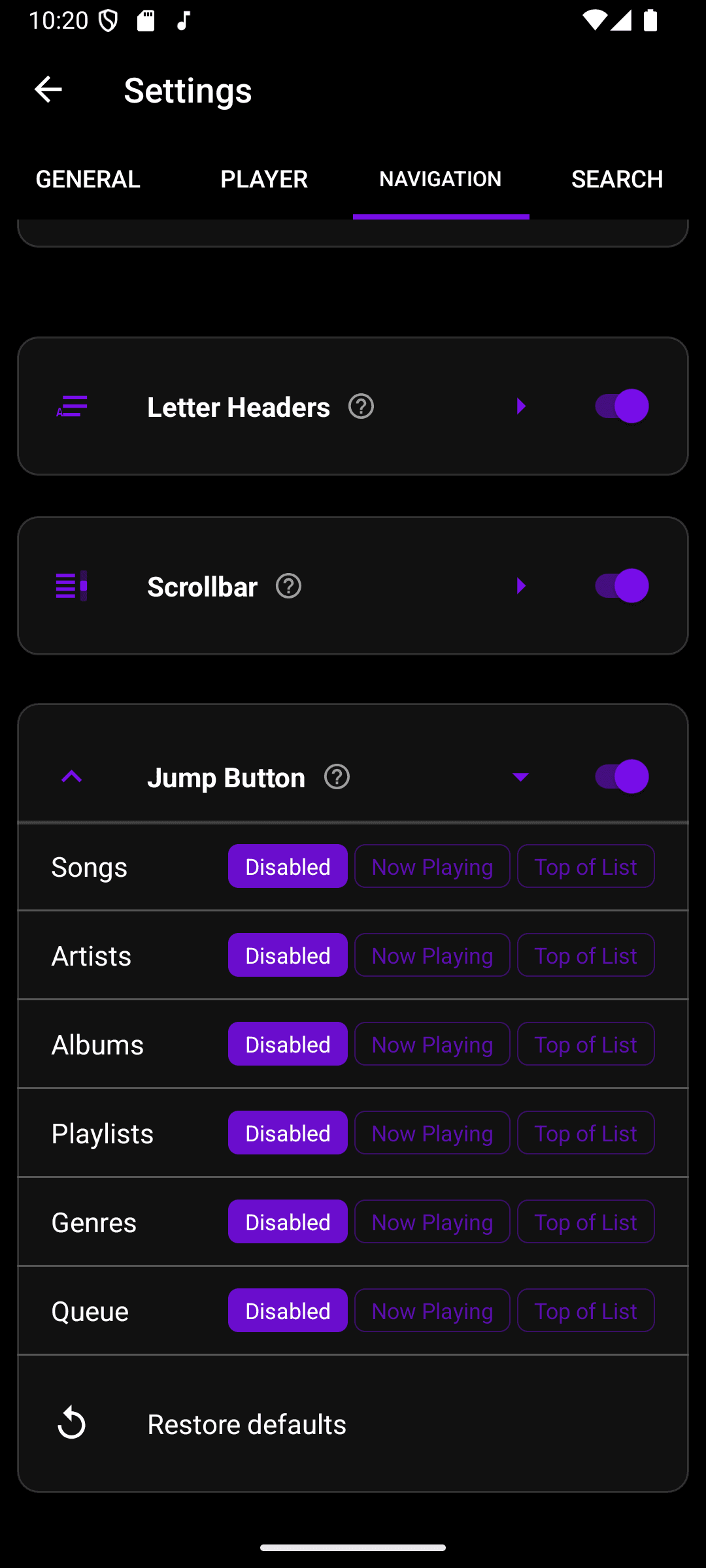
Jump Button is the floating button that can jump to the currently playing song or back to the top of the list. Expand it to set independent behavior — Disabled, Now Playing, or Top of List — for Songs, Artists, Albums, Playlists, Genres, and the Queue.