
Library syncing
Local Storage and network sources (Jellyfin, Plex, Emby, Navidrome) sync differently. Local Storage is manual-only — rescan whenever you add or remove files. Each network source gets its own Library Sync toggle with a full set of scheduling and behavior options once turned on.
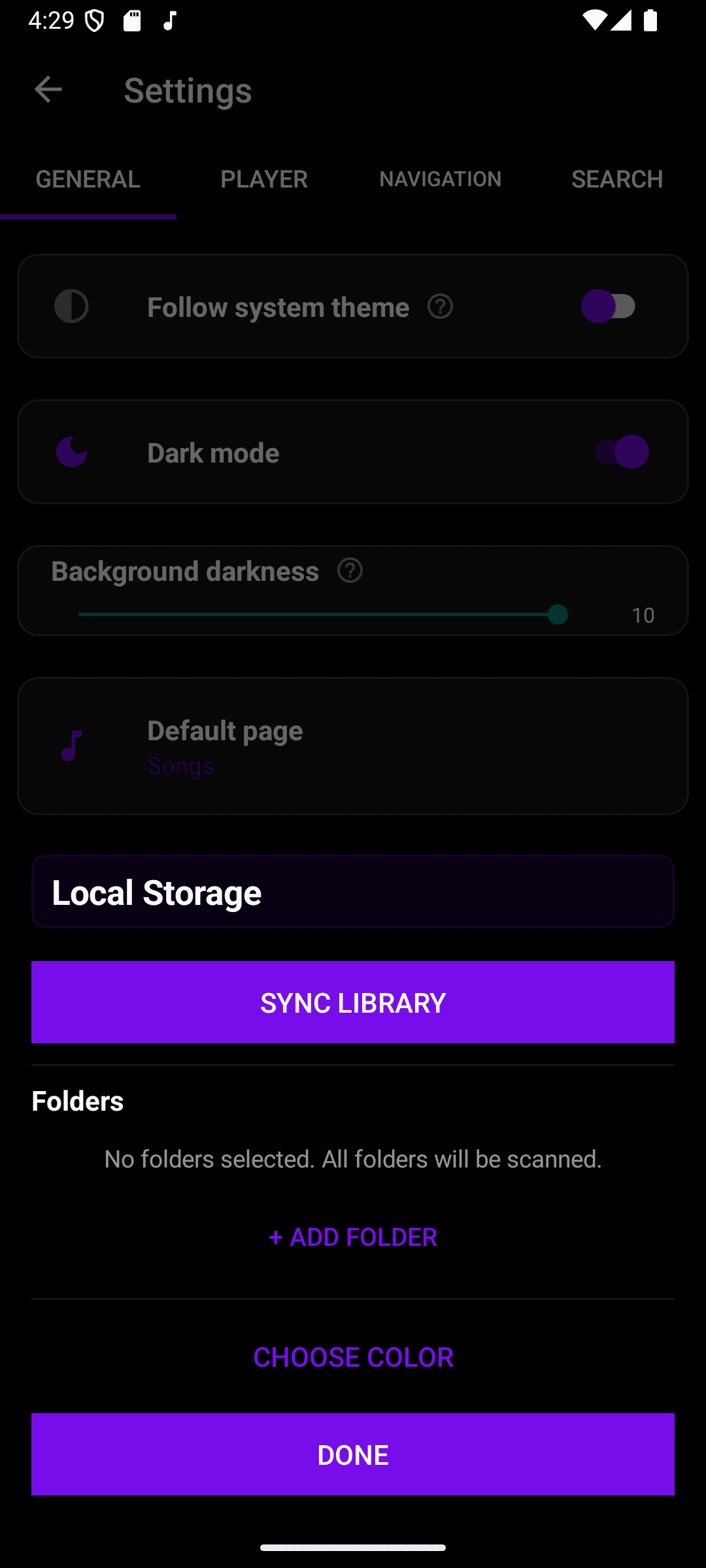
Local Storage: open Settings → Libraries, tap the pencil on Local Storage, then tap Sync Library to rescan your device's folders on demand. There's no automatic schedule for it — Queue only rescans when you tap the button.
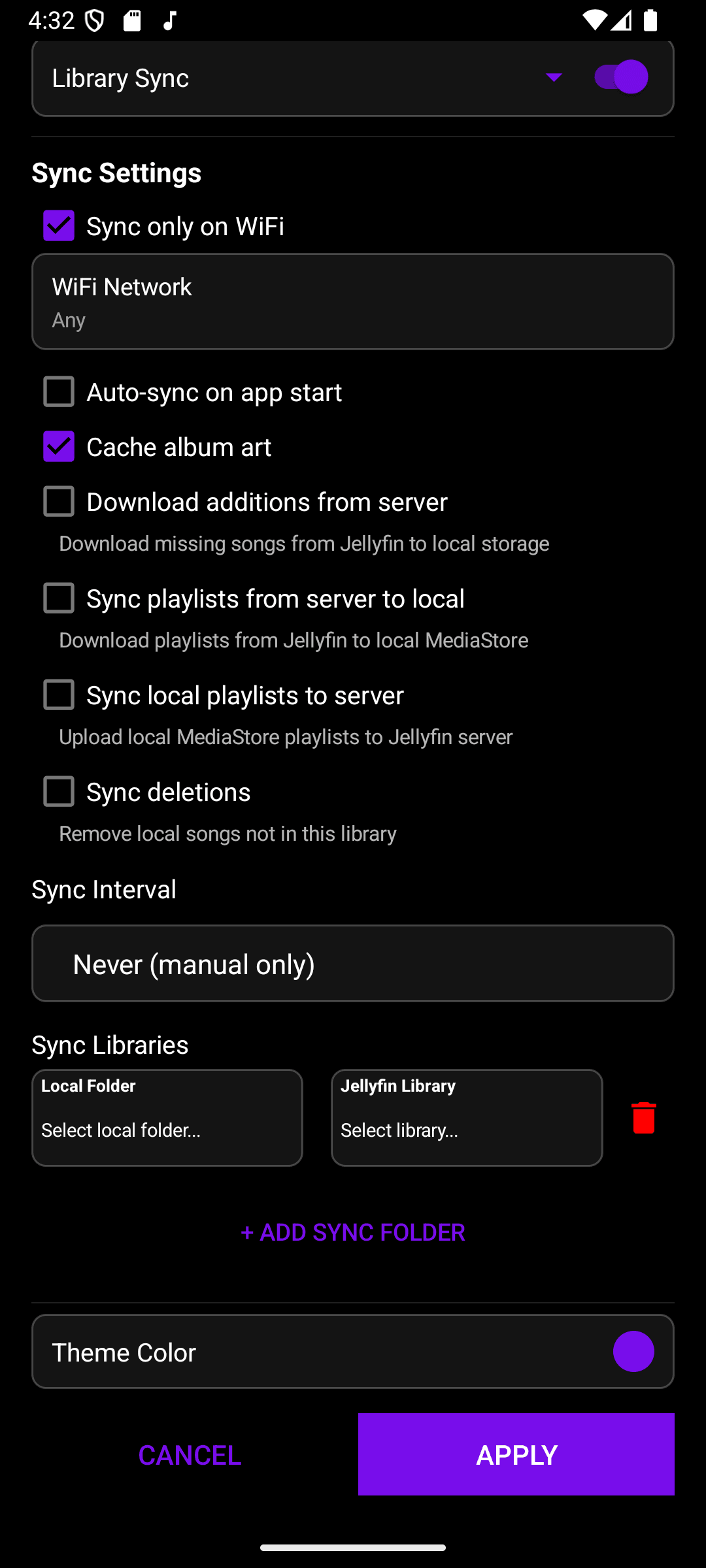
Network sources: tap the pencil on a server's row to open its settings, then turn on Library Sync and tap the row to expand Sync Settings.
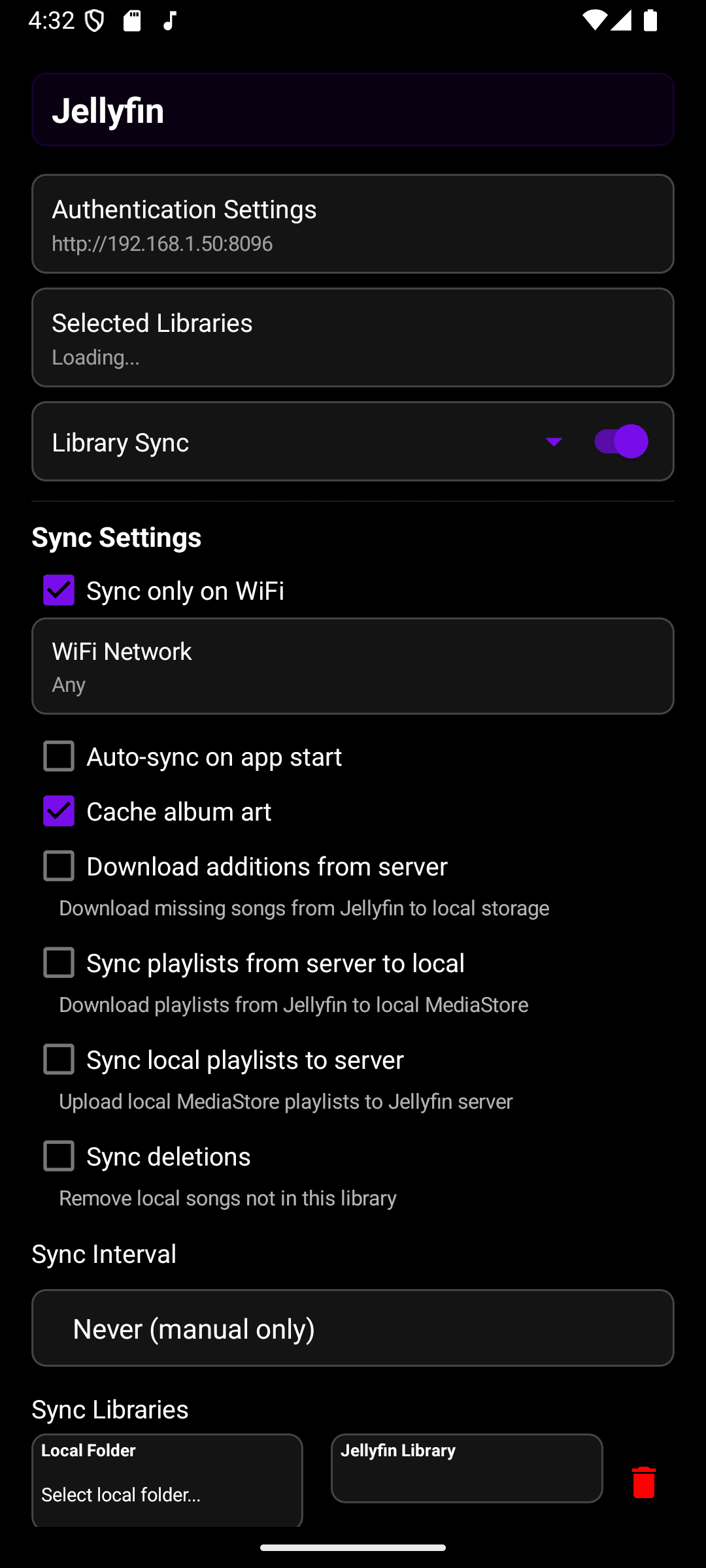
- Sync only on WiFi — on by default; sync refuses to run over mobile data and shows a toast instead.
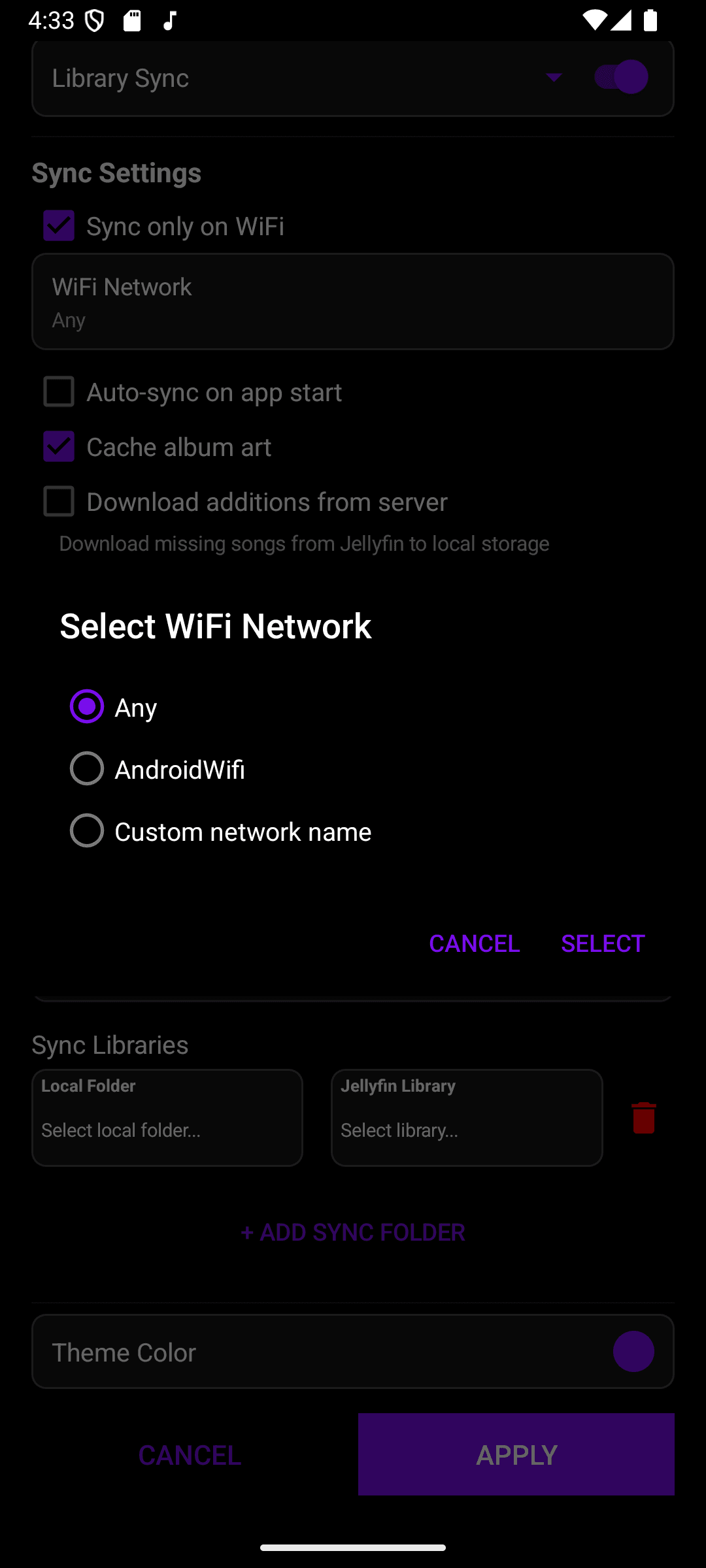
- WiFi Network — only shown while Sync only on WiFi is checked; restricts sync to one specific network instead of any WiFi.
- Auto-sync on app start — off by default; syncs this source every time you open Queue, in addition to any scheduled or manual sync.
- Cache album art — on by default; caches artwork fetched from the server during sync.
- Download additions from server — off by default; downloads songs that exist on the server but not locally, saving them to device storage.
- Sync playlists from server to local — off by default; copies the server's playlists into your device's local playlists.
- Sync local playlists to server — off by default; uploads your local playlists to the server.
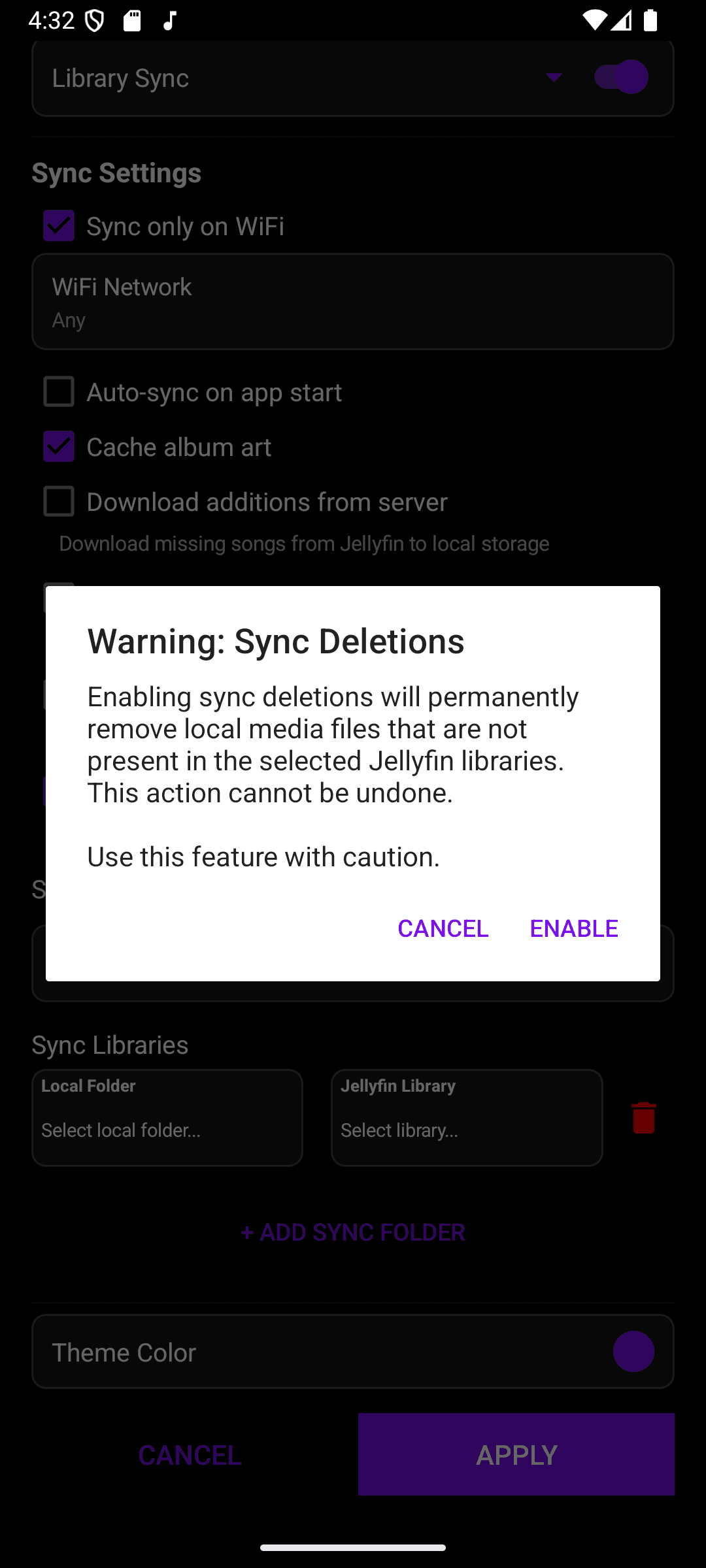
- Sync deletions — off by default and destructive; permanently removes local files that aren't present in the selected server libraries.
Turning on Sync deletions asks for confirmation first — declining leaves it off. Only enable it once you're sure the server's library is complete, since removed files can't be recovered.
Sync Interval controls the background schedule: Never (manual only), Hourly, Daily, or Weekly. Scheduled and manual syncs both respect the WiFi settings above.
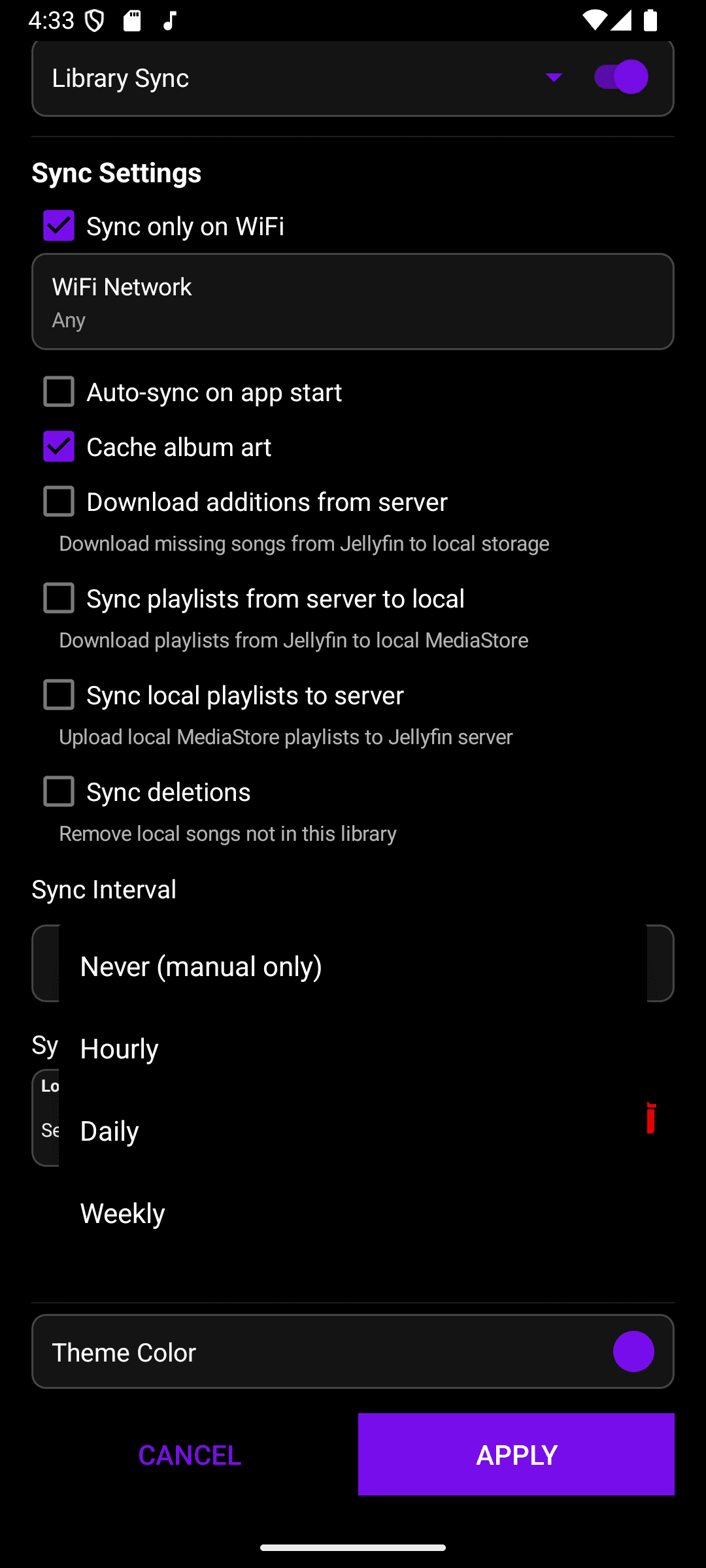
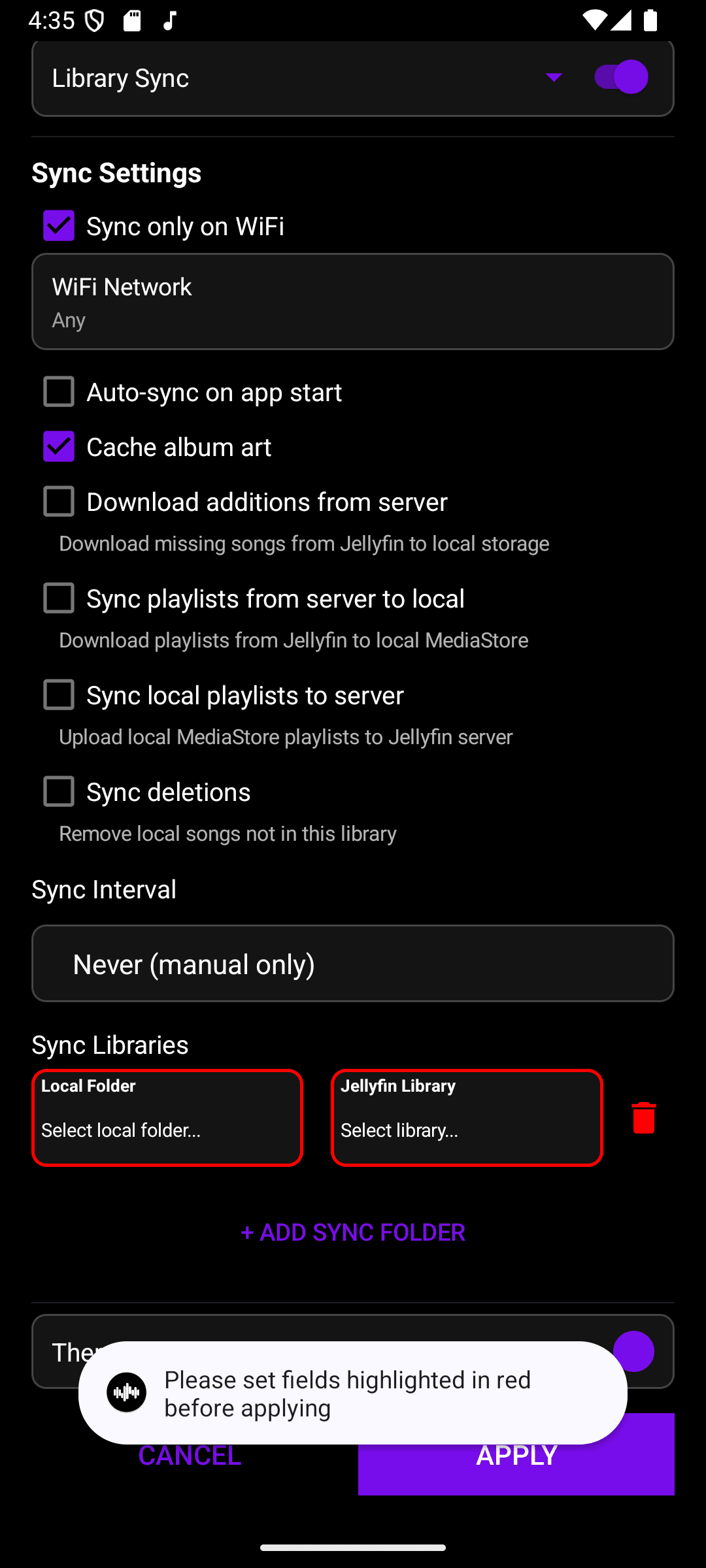
Sync Libraries maps each of the server's own libraries to a local folder, so downloaded songs and playlists land where you expect. Add a mapping with + Add Sync Folder — at least one complete mapping is required before you can apply, and incomplete rows are highlighted in red.
Once Library Sync has been turned on and applied at least once, a sync-now icon appears on that source's row in Settings → Libraries — tap it to trigger an immediate background sync without opening the dialog. A low-priority "Library Sync" notification shows progress with a Cancel action while it runs.