
The equalizer
Queue includes two equalizers: your device's built-in 5-band system equalizer, and a custom 10-band equalizer with finer control. Both sit alongside Bass Boost, Virtualizer, Reverb, and Loudness controls, so you can shape the sound to your headphones or speakers.
- Open Equalizer from the navigation menu.
- Turn the equalizer on with the switch in the top right, then either pick a preset (Pop, Rock, Jazz, etc.) or drag the bands manually.
- Layer on Bass Boost, Virtualizer, Reverb, or Loudness as needed with the dials below.
- Tap the save icon next to the preset picker to save your adjustments as a custom preset.
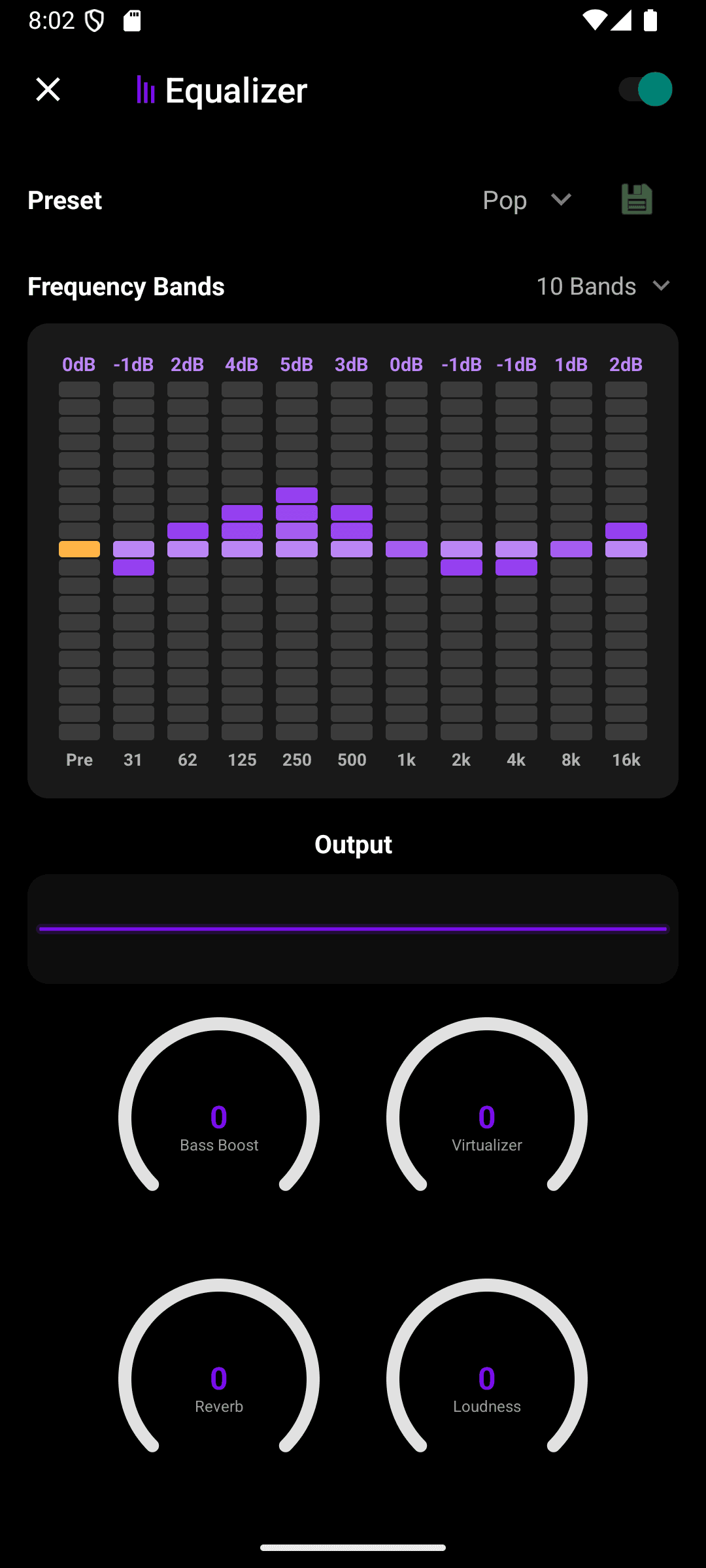
By default Queue uses your device's 5-band system equalizer — the same one Android exposes to any audio app, with fixed bands centered around 60Hz, 230Hz, 910Hz, 3kHz, and 14kHz.
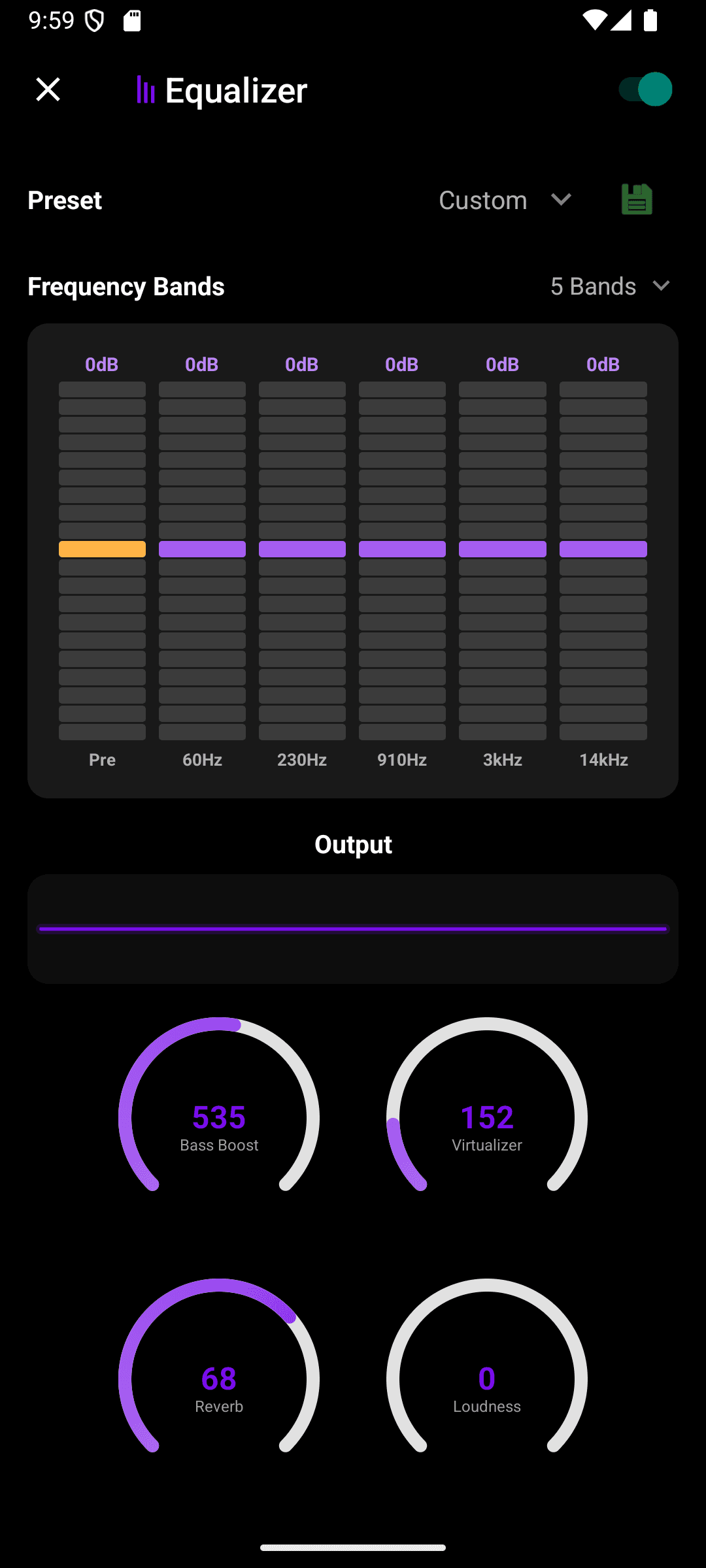
- Tap Frequency Bands, next to the band chart, to open the band picker.
- Choose 5 Bands (System) for your device's built-in equalizer, or 10 Bands (Custom) for Queue's own finer-grained equalizer.
- The chart, frequency labels, and preset list all update immediately for the mode you picked.
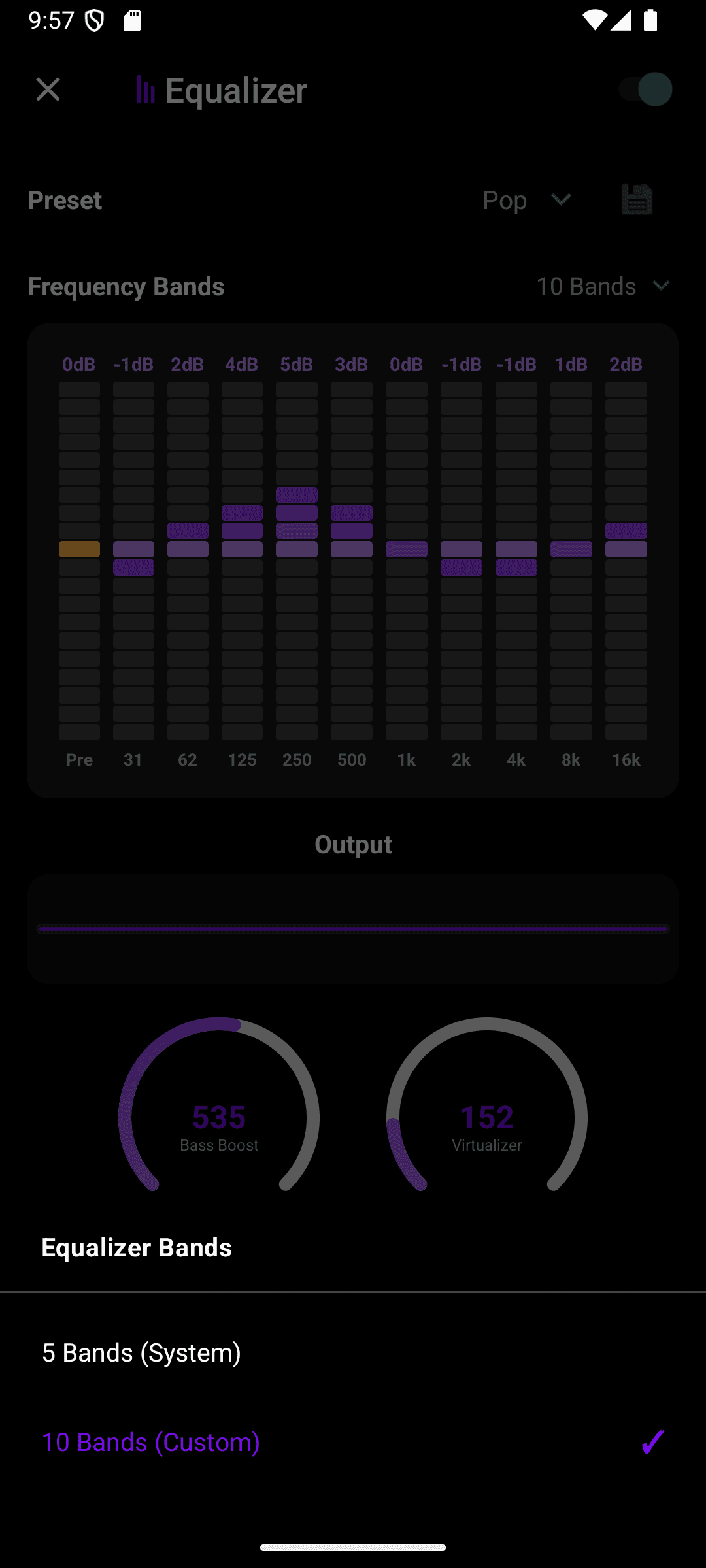
Switching modes resets the preset picker to Custom, since presets are tied to a specific band layout. Each mode keeps its own band levels, so you can flip back and forth without losing either setup.
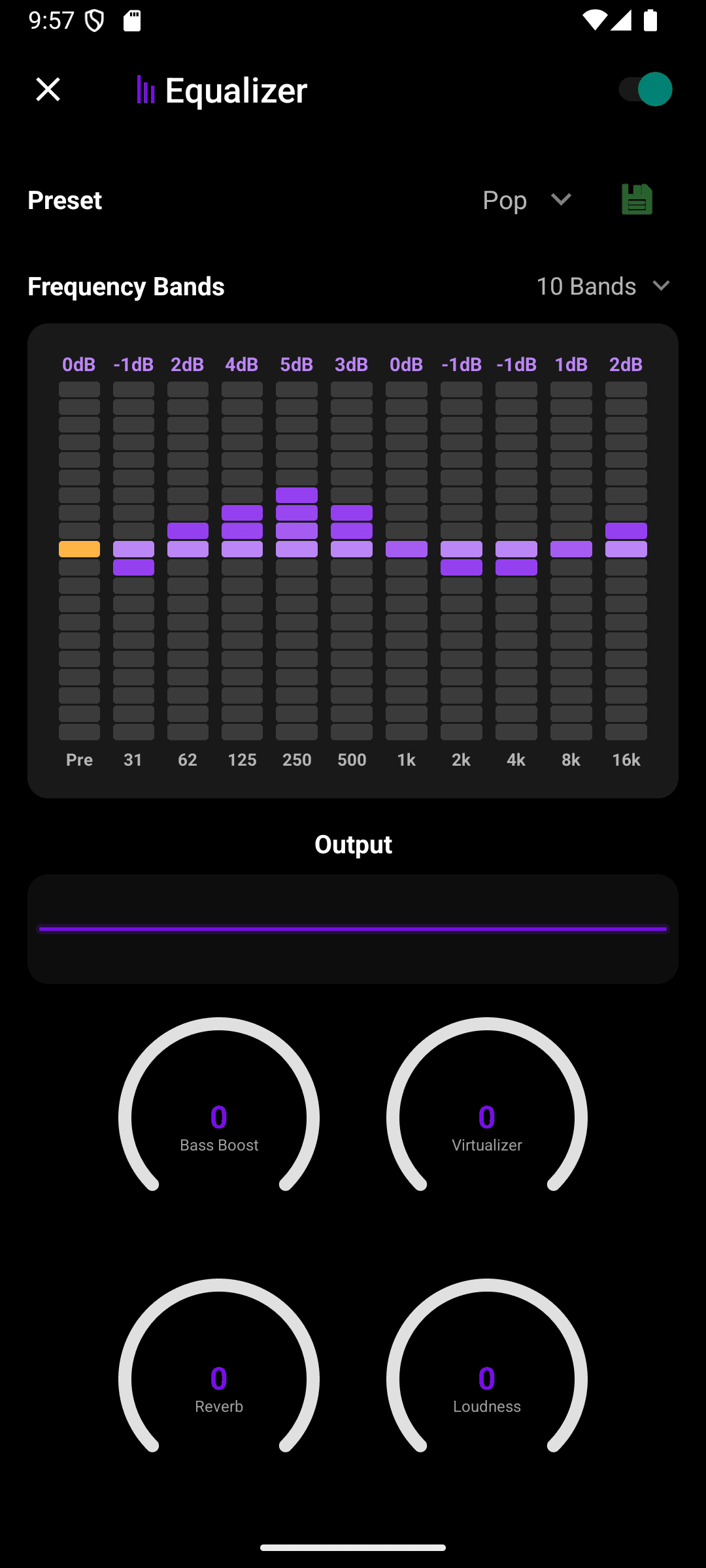
10-band custom mode needs Android 9 (API 28) or newer — on older devices only the 5-band system equalizer is available, and the band picker is hidden.